Plan the light before the stand goes up.
WATT-IF turns a location into a working lighting conversation: capture the room, build a Stage, test fixture relationships, then hand your crew a plan worth discussing.
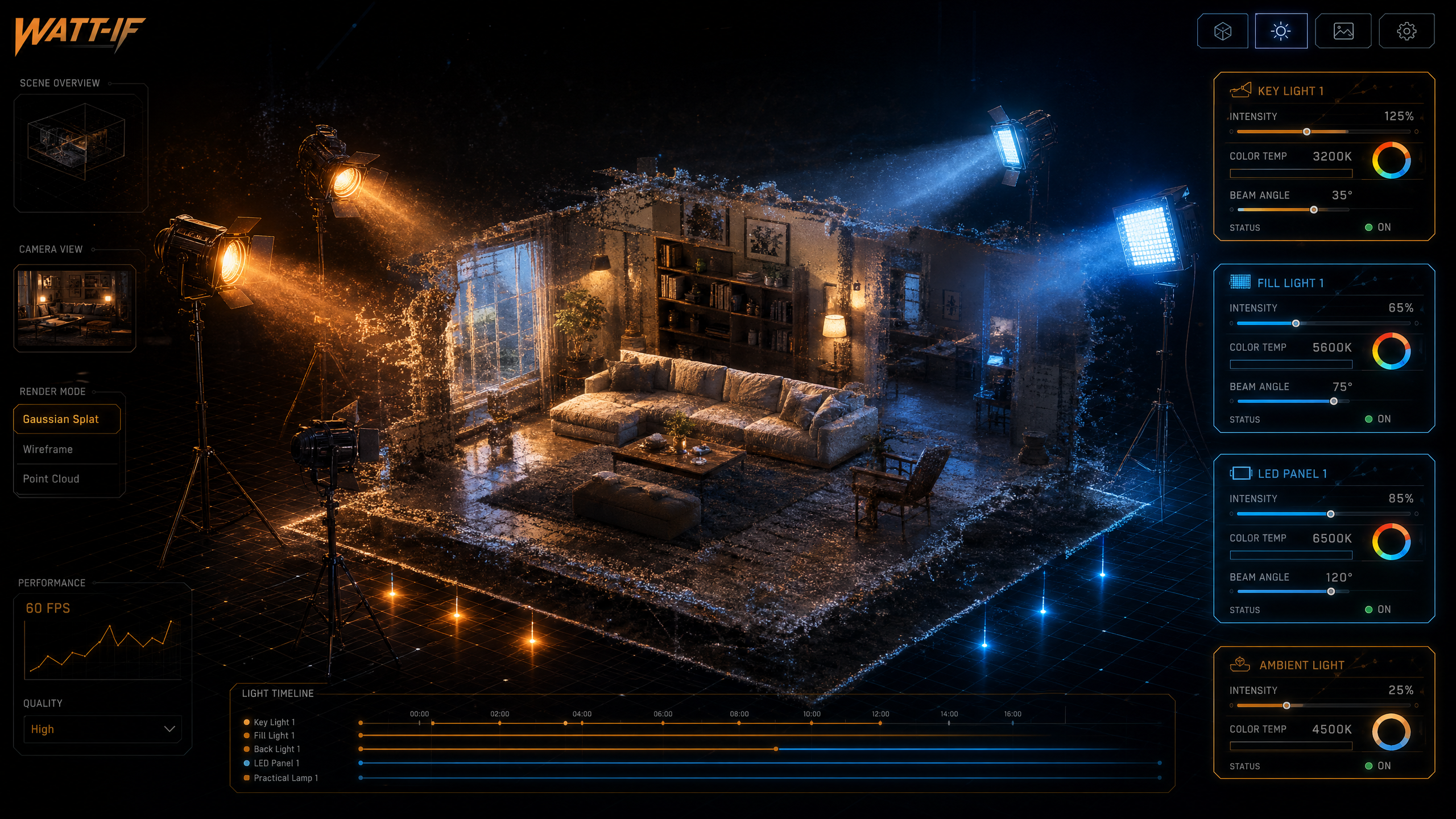
The current beta creates a photo-textured reconstruction and lets you add virtual fixtures to it. Captured light remains in the room’s original appearance, so scan in the flattest, most even light you can. Treat WATT-IF as an additive planning model, not a neutral-light blank slate.
Start in Home. Capture with intent.
Home is your launch pad. Tap + New Stage, then choose Capture environment on a supported LiDAR device. This is not a quick phone video. You are collecting the room your team will reason about later.
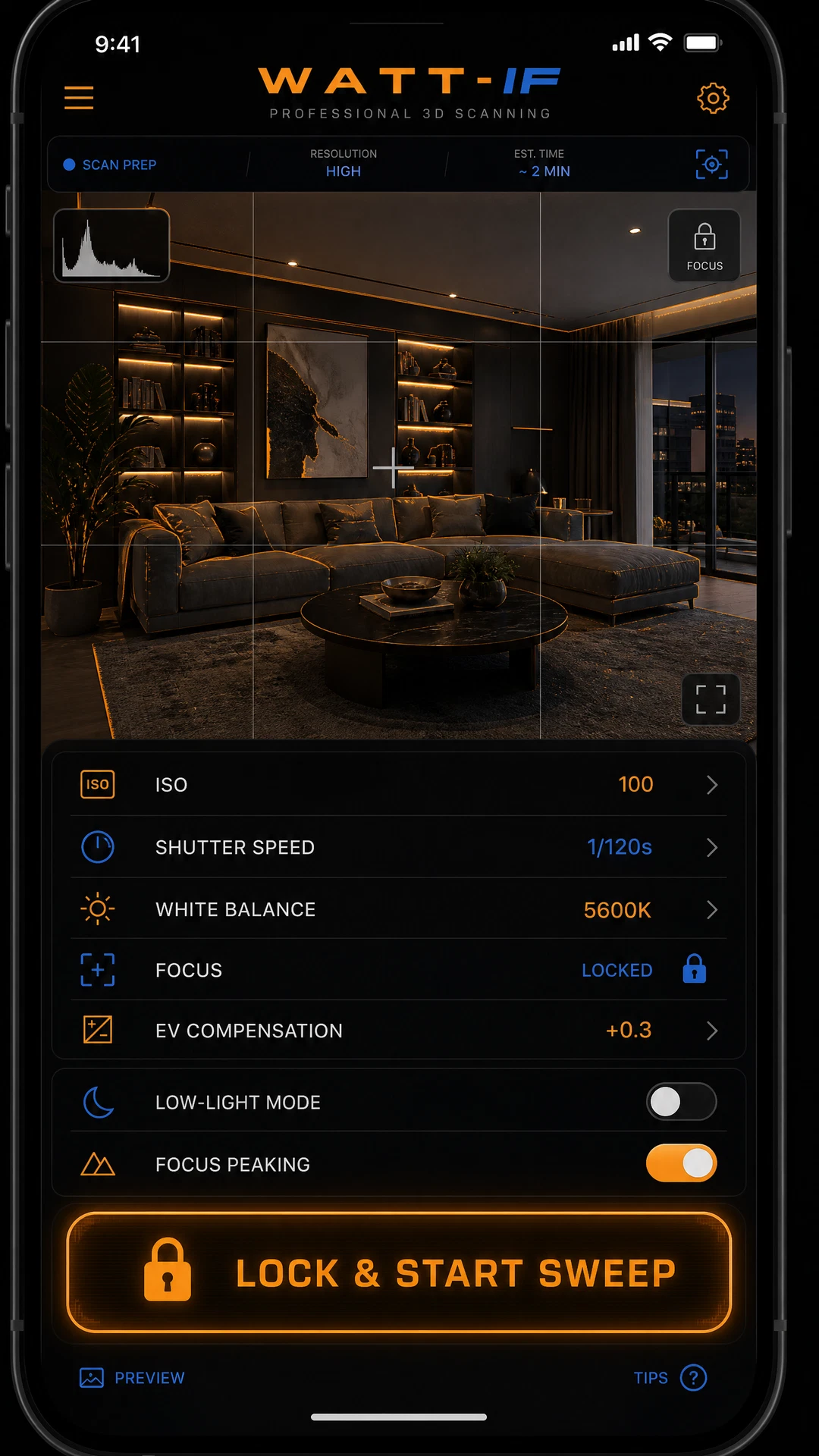
A LiDAR-equipped iPhone Pro or supported iPad Pro is the verified path. Android is currently an internal-beta exploration path, not a production-trusted room-capture workflow.
- Use soft, stable light. Direct sun and moving shadows become part of what was captured.
- Lock before you move. The capture flow locks exposure, white balance, and focus for a more consistent bundle.
- Move slowly and cover the envelope. Get walls, floor, ceiling, windows, practicals, and the likely subject area from more than one view.
- Watch the HUD. It reports frames and walked path. A short-path warning is a cue to give the room more coverage, not a gold star for finishing early.
Let the cloud build the room. Then inspect it.
After capture, WATT-IF uploads the capture bundle and processes a Stage in the cloud. The current target is about 15–25 minutes, but beta processing time and output quality can vary with room size, coverage, connectivity, and the active pipeline.
Bundle the room
Frames, depth, poses, and capture metadata are collected so the system can reconstruct the environment.
Build the Stage
The pipeline produces a photo-textured room representation for planning. Do not schedule a critical handoff on an unreviewed first bake.
Open, inspect, adjust
Look for missing surfaces, weak coverage, or a room that does not support the decision you need to make. Re-capture beats pretending.
Place the fixture. Shape the question.
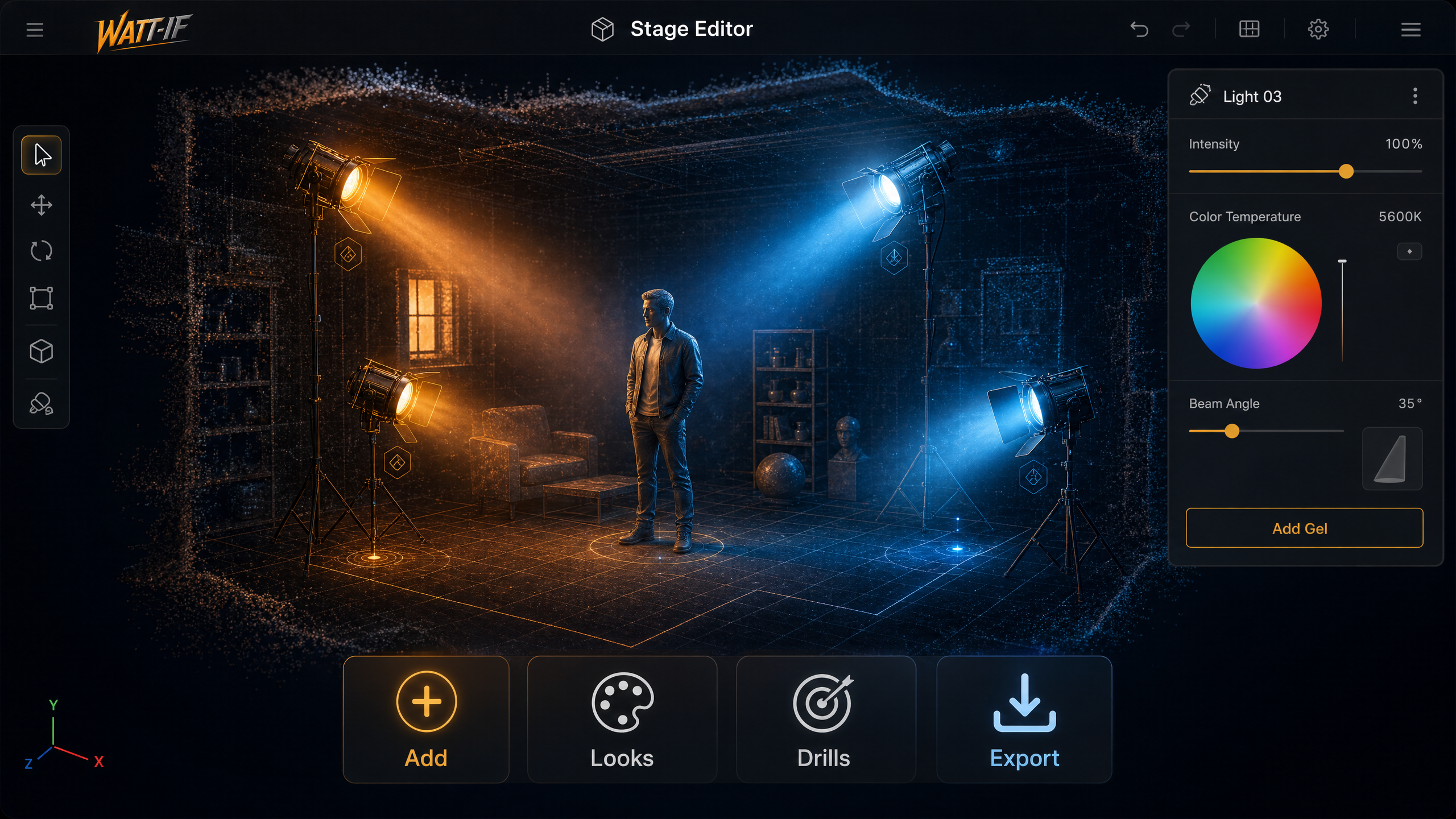
The Stage editor wraps the current 3D lighting engine. Add a fixture, move it in the room, then tune the relationship. The app is useful when it makes your next real-world choice clearer, not when it creates a prettier screenshot.
Add a fixture
Use Add to place virtual lights in the Stage. Position and aim the fixture where you intend to test the idea.
Adjust the relationship
Current controls support placement, power, height, rotation, tilt, color, and supported modifiers. Drag lights unless they are locked.
Start from a Look
Use classic portrait patterns such as Rembrandt, Butterfly, Split, Loop, or High Key as a starting point. A preset is a prompt, not a location-specific answer.
Protect the choice
Long-press a fixture or its slot control to lock it. Locking prevents accidental drags while keeping the lighting controls available.
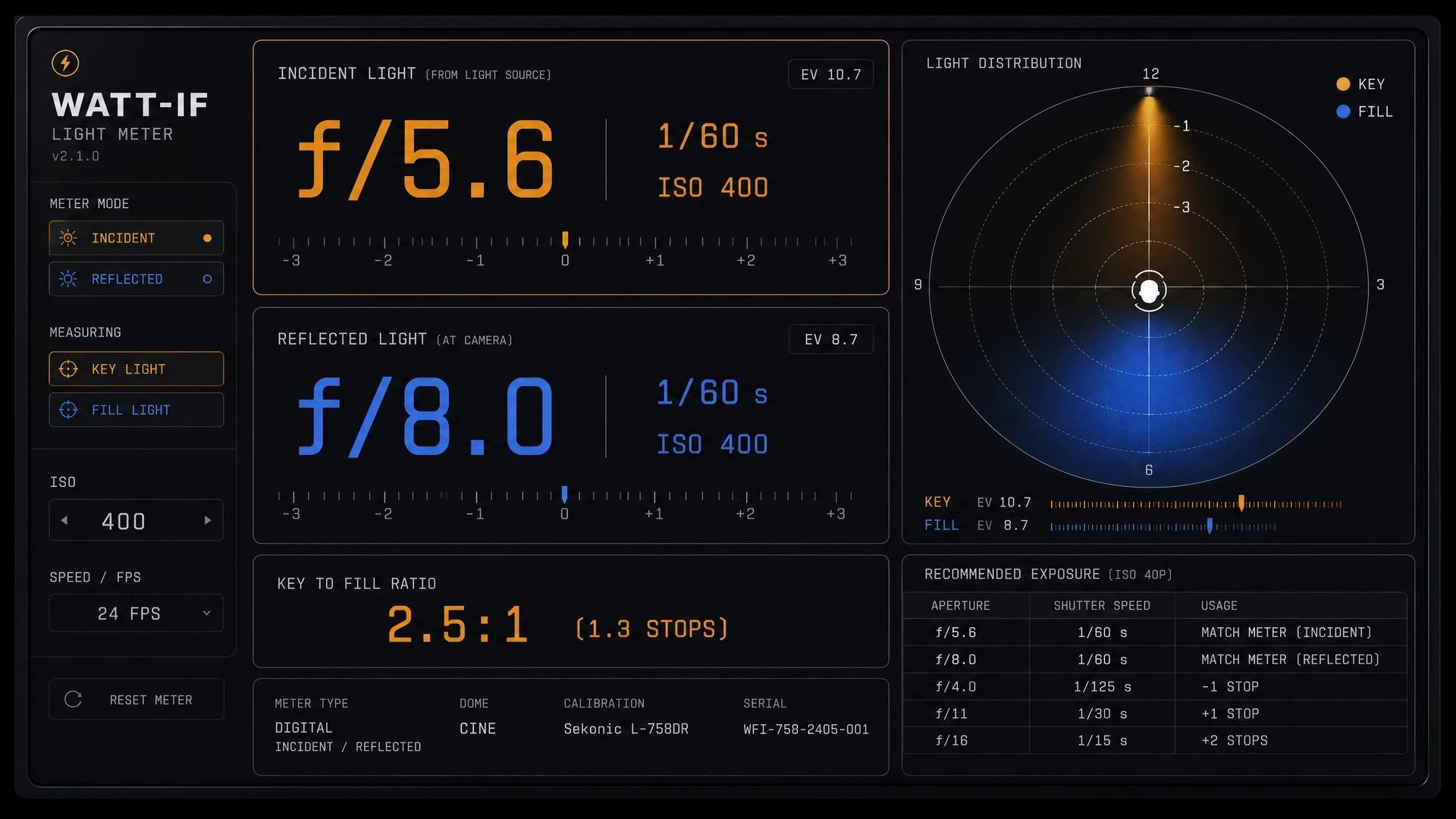
Use numbers to compare options, not to skip verification.
WATT-IF applies inverse-square relationships and tracks fixture power for planning. The current photometric paths are still being reconciled, so lux, EV, and contrast readouts are planning estimates. They are not meter-grade approval.
Ask in text. Make a move. Check the room.
M/mk is the typed lighting assistant inside WATT-IF. Use it to discuss lighting, photography, cinematography, scene blocking, color theory, and supported setup or recipe actions.
No mic. No wake word.
Type the request and read the reply. M/mk does not listen, record, or speak. The waveform is a visual mark, not a voice control.
One request, one truthful result.
When a supported action runs, the response resolves after the app knows whether it worked. A failed action should not be dressed up as success.
Useful, not authoritative.
Use M/mk to challenge a lighting idea or explore a recipe. Confirm the final choice with the Stage, the crew, and physical verification.
Save the intention. Hand off the useful part.
A Recipe keeps the fixtures, modifiers, camera context, and subject intention together. From there, use the Export entry point to create the planning artifact your conversation needs.
Don’t hand the crew a mood board. Hand them a plan they can challenge.
Depending on the active beta build, export options can include a Set Plan PDF, Recipe PNG, Gear CSV, or scene-state JSON. Treat every export as a planning reference. Review it before call time, then verify fixtures, readings, circuits, placement, and safety in the physical location.
What WATT-IF does not get to pretend it is.
This is the honest version. It is more valuable than a fake superpower.
Is the current Stage a true neutral-light relighting system?
No. The current beta lets you add virtual fixture contribution to a photo-textured reconstruction, while illumination present during capture remains in the base appearance. Scan in even light and use the Stage for additive planning.
Are the meter values production-certified readings?
No. They are physics-informed planning estimates. The app’s photometric paths are still being reconciled. Use a physical meter, actual camera, and qualified crew for final exposure and electrical decisions.
Can Android be relied on for a production room capture?
Not yet. Android is an internal-beta path while physical-device capture verification continues. The verified capture workflow uses a LiDAR-equipped iPhone Pro or supported iPad Pro.
Can M/mk hear or talk to me?
No. M/mk is text-only by design. Type the request, read the response, and make the final decision in the actual room.